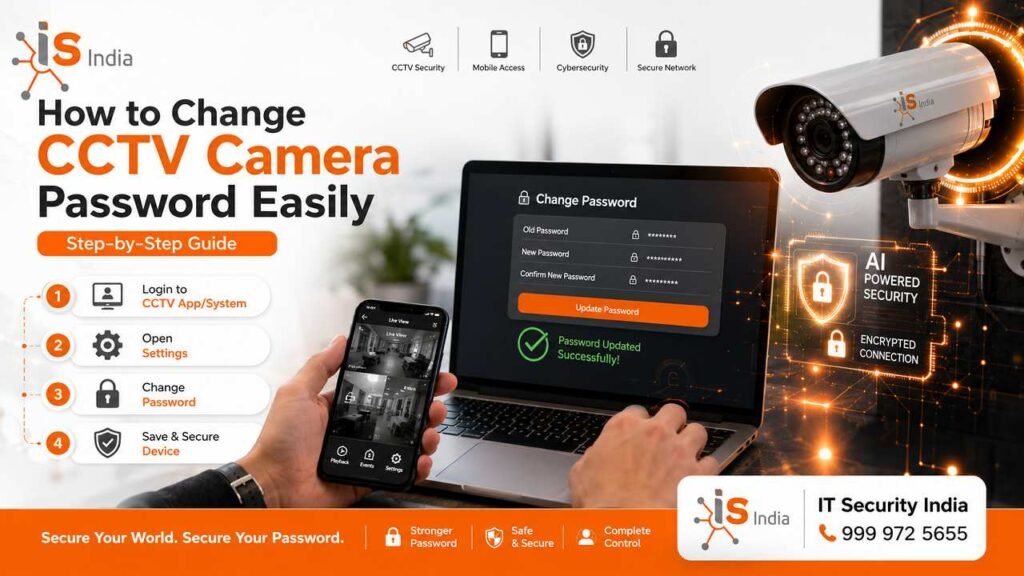
Knowing how to change CCTV camera password is one of the most important steps in keeping your surveillance system secure. Whether you use a DVR, NVR, or IP camera at home or at work, a weak password invites hackers. This step-by-step guide shows how to change your CCTV password on major platforms. It covers DVRs, NVRs, mobile apps, and web browsers. This helps keep your cameras safe and under your control. For expert help, call IT Security India at 999 972 5655. They offer great prices on CCTV installation and security solutions in India.
Why Changing Your CCTV Camera Password Is Important
Risks of Using Default CCTV Passwords
Many CCTV systems come with default passwords that are easy to find online. Hackers can use these passwords to gain access to your cameras’ feeds. In fact, research shows many deployed cameras still use default credentials. Some websites provide live feeds from hacked cameras. Many times, the owners did not change the default password. This isn’t a small danger; it’s an actual threat.
Protecting Your Home & Office Security System
An inadequate password for the CCTV system could put your entire home at risk. The intruders need not enter your home physically to gain access; they can log in to the system digitally. A weak password may let someone access live feeds, turn off cameras, remove footage, or even interfere with alarms. Secure passwords are vital for business owners, homeowners and the security teams.
Preventing Unauthorized Remote Access
Modern CCTV camera systems connect to the internet. This makes them vulnerable to attacks from afar. 2-factor authentication (2FA) provides a vital security layer. It requires multiple verification methods before granting access. Even if a hacker tries to crack your password, they won’t be able to log in without the second verification. Change your password frequently to reduce the chance of unauthorised access.
Things to Know Before Changing a CCTV Password
DVR, NVR & IP Camera Login Details
Before making any changes, know which type of system you have. A DVR (Digital Video Recorder) works with analogue cameras. An NVR (Network Video Recorder) connects IP cameras over a network. Standalone IP cameras have their own web interface. Each system has a slightly different process for accessing its admin panel.
Admin Username & Current Password Requirements
You will need your current admin username and password to make changes. For most systems, the default username is admin. Some Dahua and similar recorders use account 888888 with a temporary system password. If you have never changed these settings, check your device manual or the manufacturer’s website for the default settings.
Backup Important CCTV Settings Before Changes
A factory reset usually deletes all custom network settings.
This can include static IP addresses.
It can also remove port forwarding rules.
It may delete Wi‑Fi credentials. Before you make changes, write down your current settings so you can restore them quickly if needed.
How to Change CCTV Camera Password from DVR

Login to DVR Admin Panel
Connect a monitor to your DVR using an HDMI or VGA cable. Power on the DVR, right-click anywhere on the screen, and select Main Menu. Enter your current admin username and password to log in.
Open User Management or Account Settings
Once in the main menu, go to Settings, then System, then Account. The exact path may vary by brand. Here you will find user management options. You can edit the admin account credentials here.
Create & Save a New Secure Password
Select the admin account.
Choose Edit or Change Password
Enter your old password.
Type a new, strong password. Click Save or Apply. Your DVR will confirm the update. You will need to use the new password on all connected devices going forward.
How to Change Password in NVR Systems
Access NVR Security Settings
Power on your NVR and right-click to access the Main Menu. Go to Configuration → User Management or System → Account, depending on your brand (Hikvision, Dahua, CP Plus, etc.).
Update Admin Login Credentials
Select the admin user and click Edit. Enter your current password in the Old Password field. Then type your new password and confirm it. Ensure the new password meets the strength requirements shown on screen.
Restart & Verify New Password Settings
After saving, restart the NVR to apply all changes. Log back in using the new password to confirm it works correctly. Update the password on any connected mobile apps or monitoring software as well.
How to Change CCTV Camera Password Using Mobile Apps
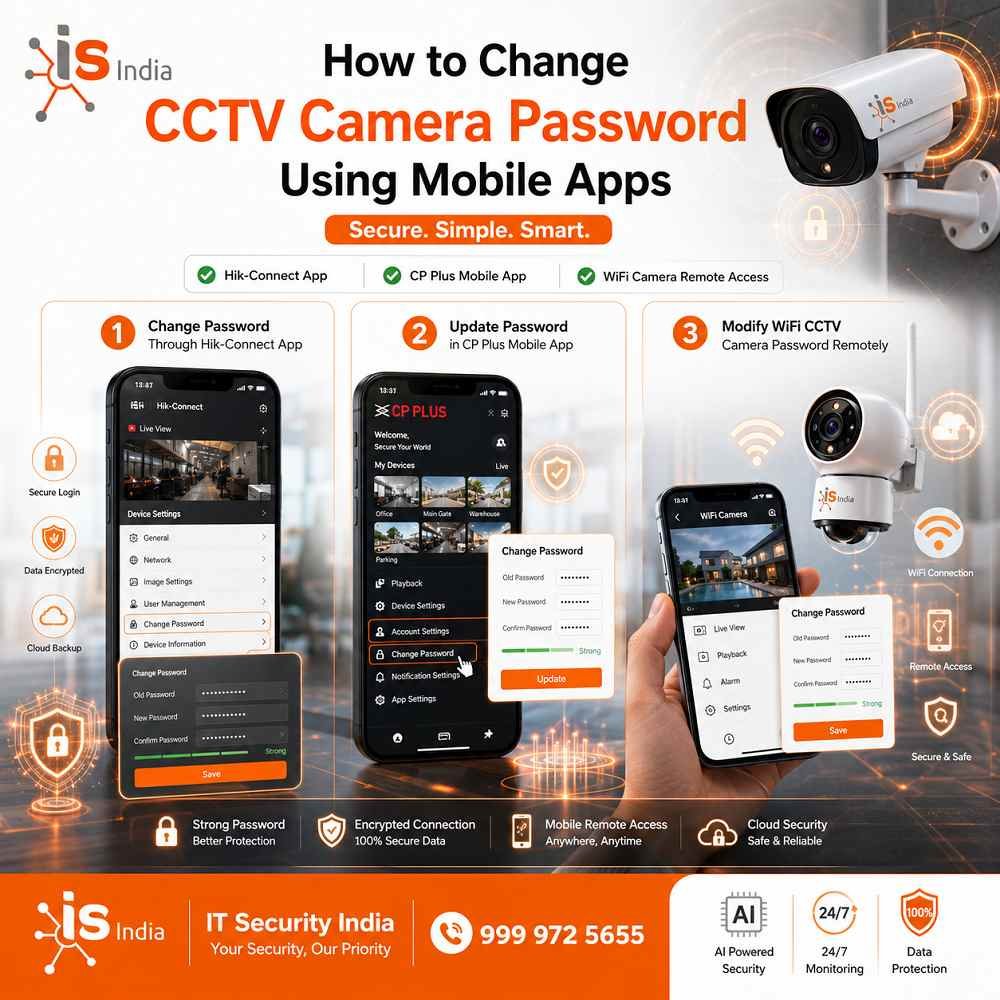
Change Password Through Hik-Connect App
In the Hik-Connect app, tap Me from the bottom menu, then tap your admin user details at the top. Under Account Management, select Change Password. An 8–12 character password is strong.
Use at least three of these: lowercase, uppercase, numbers, and special characters. Once changed, log out all users with the old credentials and log in again with the new credentials.
To reset a forgotten device password in Hik-Connect, open the device login screen. Tap Forgot Password. Select Verify by Hik-Connect. Scan the QR code shown on your DVR or NVR screen. A verification code will be sent to your registered email address and is valid for 48 hours.
Update Password in CP Plus Mobile App
Open the CP Plus app (gCMOB or similar).
Go to Device Settings.
Select your camera or recorder.
Tap Change Password. Follow the on-screen prompts to enter the old and new passwords, then save.
Modify WiFi CCTV Camera Password Remotely
For WiFi IP cameras, open the camera’s app.
Go to Device Settings, then Security.
Update the password. Ensure your phone is online.
Make sure the camera is online before you try to change the password remotely.
How to Change IP Camera Password from PC or Browser
Login Through Web Browser
Open your web browser and type the camera’s IP address in the address bar (e.g., 192.168.1.64). Log in using the admin credentials. Most IP cameras use Chrome, Firefox, or Edge for their web interface.
Access Camera Security Settings
Once logged in, go to Configuration → System → Security or Administration → User Management. Click Edit on the admin account.
Save & Test Updated Login Credentials
Enter the current password, type your new strong password, confirm it, and click Save. Log out and log back in with the new password to verify it works. Update any connected NVR or app that uses these camera credentials.
How to Reset a Forgotten CCTV Camera Password
Using Password Reset Options
Many systems have a “Forgot password” option when you log in. It typically sends a verification code to a registered email address. For Hikvision devices, you can scan a QR code in your local GUI. Use the Hik Connect or Hik-Partner Pro application. You will be provided with a reset code.
Resetting DVR/NVR to Factory Settings
Most recorders come with an unintentional reset switch or pinhole located on the underside or back. The recorder should be kept in place. Place a straight paperclip through the hole. Keep it in place for five to 30 minutes. Be sure to stop when you hear beeps or when you see the LED lights blink. The device will restart and open the first-run wizard, where you can create a new password. Be aware that some DVRs erase recorded footage after a reset, so back up your recordings beforehand.
Contacting CCTV Brand Support for Recovery
If physical and app-based resets fail, contact the manufacturer’s support team. Brands like Hikvision, Dahua, and CP Plus provide technical support for password recovery. You can also call IT Security India at 999 972 5655 for fast, professional on-site support at the best price.
Best Practices for Creating a Strong CCTV Password
Use Strong Letters, Numbers & Symbols
A safe CCTV password should be at least 12 characters long. Use uppercase and lowercase letters, numbers, and symbols. Longer passwords are far harder to crack. Avoid anything that spells a real word or follows a pattern.
Avoid Common or Easy Passwords
Never use default credentials such as admin/admin, 12345, or passwords based on your company name (a famous example: the Louvre museum’s camera system was reportedly secured with the password “LOUVRE“). These are the first combinations any attacker will try.
Change CCTV Password Regularly
Password rotation reduces the window of opportunity for attackers. Update your CCTV passwords often. Do this after staff changes or any suspected security breach. Consider using a reputable password manager to securely store and manage credentials.
Common Problems While Changing CCTV Passwords
Incorrect Username or Password Errors
Double-check that Caps Lock is off. Make sure you enter the correct current admin credentials. If you have multiple user accounts, ensure you are logged in as an admin and not a restricted user.
Unable to Save New Password
Some systems require a new password that meets specific strength requirements. These may include a minimum length, mixed character types, or no repeated characters. Review the on-screen requirements. Update your password to match them. Then try to save again.
Mobile App Not Syncing After Password Change
After changing the device password, you must manually update it in your mobile app. Go to the app’s Device List, find the device, tap Edit, and enter the new password. The app does not sync automatically when device credentials change.
Tips to Keep Your CCTV System Secure
Enable Two-Factor Authentication
After changing the device password, you must manually update it in your mobile app. Go to the app’s Device List, find the device, tap Edit, and enter the new password. The app does not sync automatically when device credentials change.
Keep DVR/NVR Firmware Updated
Manufacturers regularly release firmware updates to fix security vulnerabilities. Outdated firmware is one of the most common entry points for hackers. Check your maker’s website often for updates. Turn on automatic updates if your system supports them.
Limit Access to Trusted Users Only
Not everyone needs full admin access. Set different permission levels for staff. Limit admin access to trusted individuals only. Avoid sending passwords by email. Use secure methods or password manager tools instead.
Conclusion
Simple Ways to Keep Your CCTV Cameras Safe from Hacking
Changing your CCTV camera password is not a one-time task. It is an ongoing commitment to security. Start by replacing all factory-default credentials immediately after installation. Use a strong password with 12+ characters, mixing letters, numbers, and symbols.
Enable two-factor authentication. Keep your firmware up to date. Whether you have a home or office network of any size, these simple steps will drastically reduce cybersecurity risks.
Need help from a professional to secure the security of your surveillance system? IT Security India provides expert CCTV installation, password configuration, and security audits. We provide some of the most affordable pricing in India. Contact us now at 999 972 5655 to ensure the security of your business and home.
FAQs – How to Change CCTV Camera Password
Why is changing the default CCTV password important?
Default passwords are public and easy to hack. Intruders can access live feeds, delete footage, or disable cameras remotely.
How do I change the password on a DVR?
Connect a monitor, right-click for Main Menu, go to Settings → System → Account, edit admin credentials, enter old/new password, and save.
What’s the process for NVR password change?
Access Main Menu → Configuration → User Management, select admin, enter old password, set new one, save, restart, and verify login.
How to reset a forgotten CCTV password?
Use “Forgot Password” with QR code/email verification, or press the reset pinhole for 5-30 seconds to factory reset and set a new one.
Can I change IP camera password via mobile app?
Yes, in apps like Hik-Connect or CP Plus, go to Me/Device Settings → Change Password, enter old/new details, and log out/in.
What makes a strong CCTV password?
Use 12+ characters with uppercase, lowercase, numbers, and symbols.
Avoid defaults like admin or simple patterns.
Change it regularly.
How do I fix “incorrect password” errors when changing?
Check Caps Lock. Confirm the admin login. Make sure the new password meets strength rules. Use enough length and a mix of characters. Then try again.