Not sure if your security camera system is recording right now? Most owners discover an issue with their DVR or NVR after an incident. That’s because many people only realize the value of the footage after something bad happens. Thankfully, these checks can confirm if the devices are properly set up to save footage in just a few minutes. We explain each check in simple terms in this guide. So, you can verify if your system is working as it should and fix common issues before they happen.
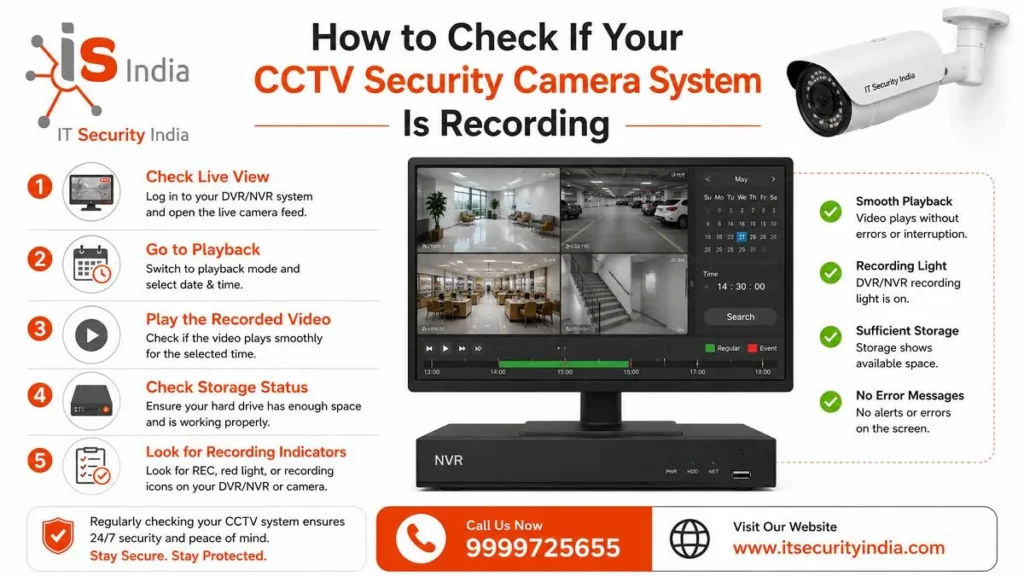
How to Check CCTV Recording Status on DVR/NVR
Start with the recorder itself. Many units have status lights on the front. On Reolink NVRs, a blinking red HDD light means the cameras are recording to the hard drive. A solid red light means the drive is detected but not recording. No light means the drive is not detected.
Next, open the recorder menu on a connected monitor. If the storage menu shows a hard drive with Normal status and the recording schedule is enabled, your system should record. Also make sure every camera is online, because an offline cctv camera cannot record.
Check CCTV Recording Status and Schedule Settings
Recording follows the schedule. On many recorders, you will find it in the storage menu as a colour-coded weekly grid. On one common layout, green means normal recording at all times. Yellow means motion detection. Red means alarm recording.
Check these points for every camera:
- The channel shows a recording status. On Uniview recorders, a blank status means that the camera is not recording at present.
- Motion detection is enabled if you use motion recording.
- The recorder’s date and time are correct. Uniview notes that an incorrect system time can cause no-recording problems.
How to Play Back CCTV Footage
Playback is the best proof that your system is recording. Open the main menu, choose Playback, and select the camera. Most recorders show a timeline. Click any point on it to play from that moment. You can also change the date using the calendar. On many NVRs, a coloured date on the calendar tells you footage exists for that day.
One detail to watch: on some recorders, the quick Playback button covers only the last 24 hours. For older dates, use the Search or Time Search option, choose the date and channel, and press play.
Verify Recorded Videos and Missing Footage
Scroll through different days and cameras, and look for gaps.
Missing segments or corrupt clips can point to a hard drive problem. Lorex notes that a failing or uninitialised drive often shows up this way. For a quick proof test, make a short two-minute recording. Play it back straight away, as a Uniview troubleshooting guide suggests.
How to Check CCTV Hard Drive Health and Storage
Your hard drive holds every recording, so its health matters. Hard drives have moving parts. IT Security India notes that heat and vibration can affect their lifespan.
Check Hard Drive Status and Available Storage
Open the storage or HDD management menu. Typical paths are: Hikvision: Menu > Configuration > Storage > HDD Management. Dahua: Main Menu > Storage > HDD Manager. Lorex: Menu > Device > HDD. Note the disk capacity, status and free space.
- Normal: the drive is ready to record.
- Abnormal or Error: the drive may be failing, so check its S.M.A.R.T. health or try reformatting.
- Zero free space: recording may have stopped if overwrite is off.
Some recorders also offer a disk health check. On Camius units, it shows the drive temperature and an overall evaluation. A “Passed” status means the drive is working properly. For most small systems, checking the drive a few times a year is enough, according to IT Security India.
Also, turn overwrite on. Lorex explains that if overwrite is off, the system stops recording when the hard drive is full.
Why Is Your CCTV Camera Not Recording?
Common CCTV Recording Problems and Causes
Most recording failures trace back to a short list of causes:
- Missing or failed hard drive: if the drive shows an error, is unformatted or is missing, recording stops.
- Full drive with overwrite off: the recorder stops saving new footage.
- Disabled schedule: A recording schedule that is off, or motion recording without an active schedule, records nothing.
- Offline camera or loose cables: An offline camera cannot record. Loose camera cables can leave a channel with no picture.
- Unstable power: An unstable supply to the recorder or cameras can cause reboots and gaps in recordings.
How to Fix CCTV Recording Problems
Troubleshoot Recording Settings and Connections
Work through these steps in order:
- Confirm each camera is online.
- Correct the recording schedule. Turn on motion detection if you use it.
- Set overwrite to On (Auto). This way, recording will not stop when the disk is full.
- Check power. Connect the recorder directly to a wall outlet instead of a surge protector or power strip, and use the adapter that came with it.
- Switch off and unplug the recorder, then check that the SATA data and power cables on the hard drive are firmly connected.
- Back up any footage you need before formatting. Formatting a drive with an error can clear many faults, but it erases all existing footage.
- If the recorder still cannot detect the drive after you check the connections, the drive is likely failing. It needs replacement.
FAQs – Check If Your CCTV Security Camera System Is Recording
1. How do I know if my security camera system is recording?
Open your DVR or NVR menu and check the hard drive status under Storage. If the drive shows Normal and recording is enabled, your system should record. To be sure, play back a recent clip.
2. How often should I check my CCTV hard drive?
For most small systems, checking the hard drive status a few times a year is enough. Check sooner if you see an error or missing footage.
3. Why is my CCTV camera not recording?
The usual causes are a missing, failed, or unformatted hard drive. A full drive with overwrite turned off can also cause this. Another cause is a disabled schedule. An offline camera, unstable power or an incorrect system date and time can also stop recording.
4. What happens when the CCTV hard drive is full?
With overwrite enabled, the recorder replaces the oldest footage with new recordings. With overwrite disabled, it stops recording, so turn overwrite on.
5. Can I play back older CCTV footage?
Yes. Use the Search or Time Search option, then pick the date and camera. On some recorders, the quick Playback button covers only the last 24 hours.
Conclusion
A security camera system that is not recording gives you a false sense of safety. Most issues come from the hard drive, the schedule, overwrite settings, power, or loose connections. They are easy to spot once you know where to look.
Get Professional CCTV Repair and Maintenance Services
Prefer to leave it to experts? IT Security India is a CCTV camera company that can check your recorder, hard drive, cabling and settings for you. Just call us. Please tell us what your system is doing. We will guide you to the simplest next step. This may be repair, maintenance, or a new installation. You will get the best price.
📞 Call Now for Best Price & Installation: 999 972 5655
📍 Service Areas: Gurgaon, Manesar, Sohna, Noida, Ghaziabad, Delhi NCR