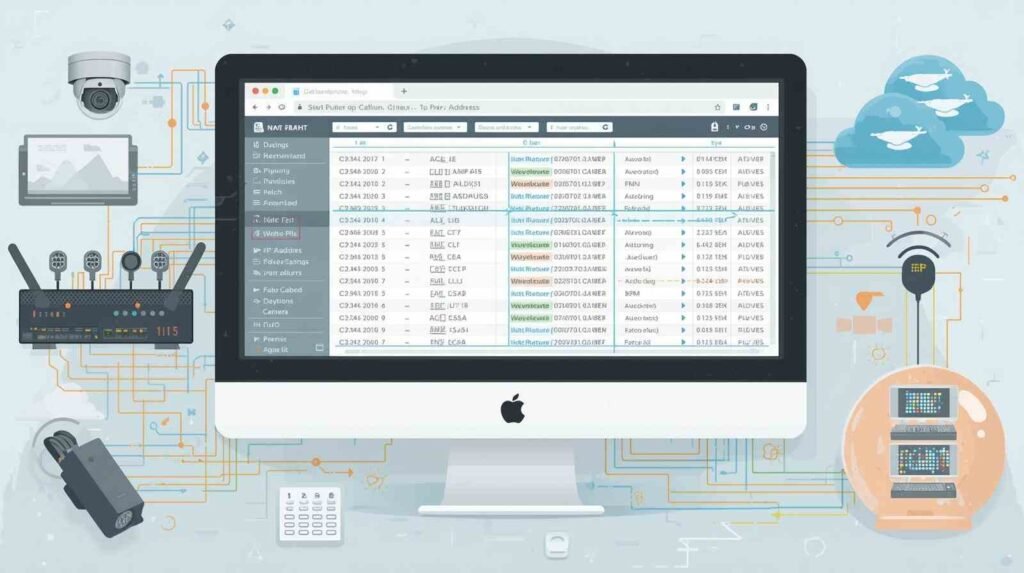
Knowing how to find CCTV camera IP address is essential for setting up and managing your security system. The IP address lets you access your camera remotely and ensures smooth monitoring. To install a new camera or fix an old one, finding the IP address is the first important step.

Why Knowing Your CCTV Camera IP Address Matters
Knowing how to find your CCTV camera IP address is crucial for effective security system management. The IP address functions as a unique identifier which lets you access and control the camera from a remote location. When you want to set up a new camera or fix an old one, finding an IP address should be the very first step. This will ensure that the camera is monitored smoothly. We at IT Security India offer professional surveillance installation as well as support. We offer the best prices to help you easily protect your home or business.
Understanding CCTV Camera IP Addresses
What Is an IP Address in a CCTV System?
An IP address is a series of numbers assigned to each device on a network, including CCTV cameras. It functions like a postal address, directing network traffic to the right camera. Each CCTV camera’s IP address uniquely identifies it among other devices on the same network.
Static vs. Dynamic IP – What’s the Difference?
- Static IP: A fixed address assigned to the camera, ideal for consistent remote access.
- Dynamic IP: The router assigns it automatically, and it can change over time. This may need frequent checks.
How IP Addresses Help in Remote Monitoring
Remote monitoring relies on IP addresses. This lets users view live footage or recordings on computers or mobile devices from anywhere. Because of this, identifying IP addresses is very important for security management.
How to Find CCTV Camera IP Address (All Methods Explained)

Using the Camera’s Network Configuration Menu
Many modern IP cameras display their network details in their built-in menu. Access this via a connected monitor or through the camera’s app to locate the IP address directly.
Finding IP Address Through Router Admin Panel
Log in to your router’s admin panel. This is usually at 192.168.1.1 or 192.168.0.1. Next, go to the list of connected devices. Look for your CCTV camera by its hostname or MAC address. This will help you find the IP address assigned by the router.
Checking IP Address Using Command Prompt (Windows)
On a Windows PC connected to the same network, open Command Prompt and type arp -a. This command lists IP addresses paired with MAC addresses. Cross-reference your camera’s MAC address (found on the camera label) to determine its IP address.
Using IP Scanner Tools (Advanced Method)
Use network scanning tools such as Angry IP Scanner or Advanced IP Scanner to scan your entire network. These tools find active IP addresses and their device names. This helps you easily spot your camera.
How to Find CCTV Camera IP Address in Mobile
Using Network Scanner Apps on Android
Apps like “Fing” or “Net Scanner” can check your Wi-Fi network. They show all connected devices and their IP addresses. You can locate the camera by identifying its brand or MAC address.
Using Fing App on iPhone or iPad
The Fing app is great for iOS users. It helps you find all devices connected to a network. This includes IP cameras. The app has an easy-to-use interface and clearly identifies devices.
Identifying the Camera by MAC Address on Mobile
Check the camera’s MAC address. You can usually find it on a sticker. This helps you identify the camera’s IP address in the scanner app output.
Checking IP from Mobile Router App
Many routers provide mobile apps that show connected devices. Log in to your router’s app to quickly find your camera’s IP address without a PC.
How to Find CCTV Camera IP Address on Phone (Without PC)
Using Manufacturer Mobile Apps (Dahua, CP Plus, Hikvision, etc.)
Brand-specific apps often show camera details, including the IP address. This makes it easy to manage your camera from your smartphone.
Scanning the Local Network Through Camera App Settings
Most official apps have a network or device info section where you can see the camera’s IP address. Navigate through settings for this info.
How to Know If Your Camera Is Using WiFi or LAN IP
The app or scanner will indicate whether the camera’s IP address is on a Wi-Fi or wired network. This helps you fix connectivity problems.
Troubleshooting IP Not Showing on Mobile
If the IP address doesn’t appear, try reconnecting the camera. You can also restart your router or reset the camera to factory settings. This will refresh the network settings.
How to Find Camera IP Address in Hikvision Devices
Using SADP Tool (Hikvision Official Utility)
Hikvision’s SADP tool scans your local network. It lists all connected Hikvision devices and their IP addresses. This makes it a good first step.
Finding Hikvision Camera IP in Its Web Interface
Open a web browser to access the camera’s interface. This will show you detailed network settings, like the IP address. You may need default credentials if the camera is new.
Checking IP Address from Hik-Connect Mobile App
The Hik-Connect app can find connected devices and show their IP addresses. This makes mobile setup and monitoring easier.
How to Reset IP Address in Hikvision Camera
If you lose access, use the SADP tool or physically reset the camera to reconfigure the IP settings.
Common IP Issues in Hikvision Cameras & Fixes
IP conflicts or dynamic IP issues affect access. Fix by assigning a static IP address or rebooting both the camera and the router.
Special Scenarios for Locating CCTV Camera IP
When the Camera Is Connected to an NVR
NVRs assign IPs to connected cameras. Check the NVR’s device list or interface for the camera’s IP address.
When the Camera Is Wireless
Wireless cameras appear on the Wi-Fi network devices list or in mobile scanning apps. Signal drops can affect IP visibility.
When the Camera Is Offline
Try restarting devices or using SADP tools to detect IP addresses offline.
When Multiple Cameras Have the Same IP
IP conflicts cause access issues. Resolve by assigning each camera a unique static IP address via the admin panel.
Security Tips After Finding Your Camera’s IP Address
Change Default Password Immediately
Default passwords are security risks. Update to strong, unique passwords as soon as you identify the IP.
Enable Two-Factor Authentication (If Available)
Add extra protection through two-factor authentication, where supported.
Block Unauthorized IP Access
Use router firewalls or camera settings to limit access to trusted IP addresses only.
Importance of Firmware Updates
Keep your camera’s firmware up to date to protect against newly discovered vulnerabilities.
Finding your CCTV camera’s IP address is easier than it looks. You need the right tools and a straightforward method. At IT Security India, we make your CCTV setup easy and safe. We offer great prices and expert help. Interested in setting up or troubleshooting your security cameras? Call us now at +91-999 972 5655 for swift, specialist service tailored to your needs.